
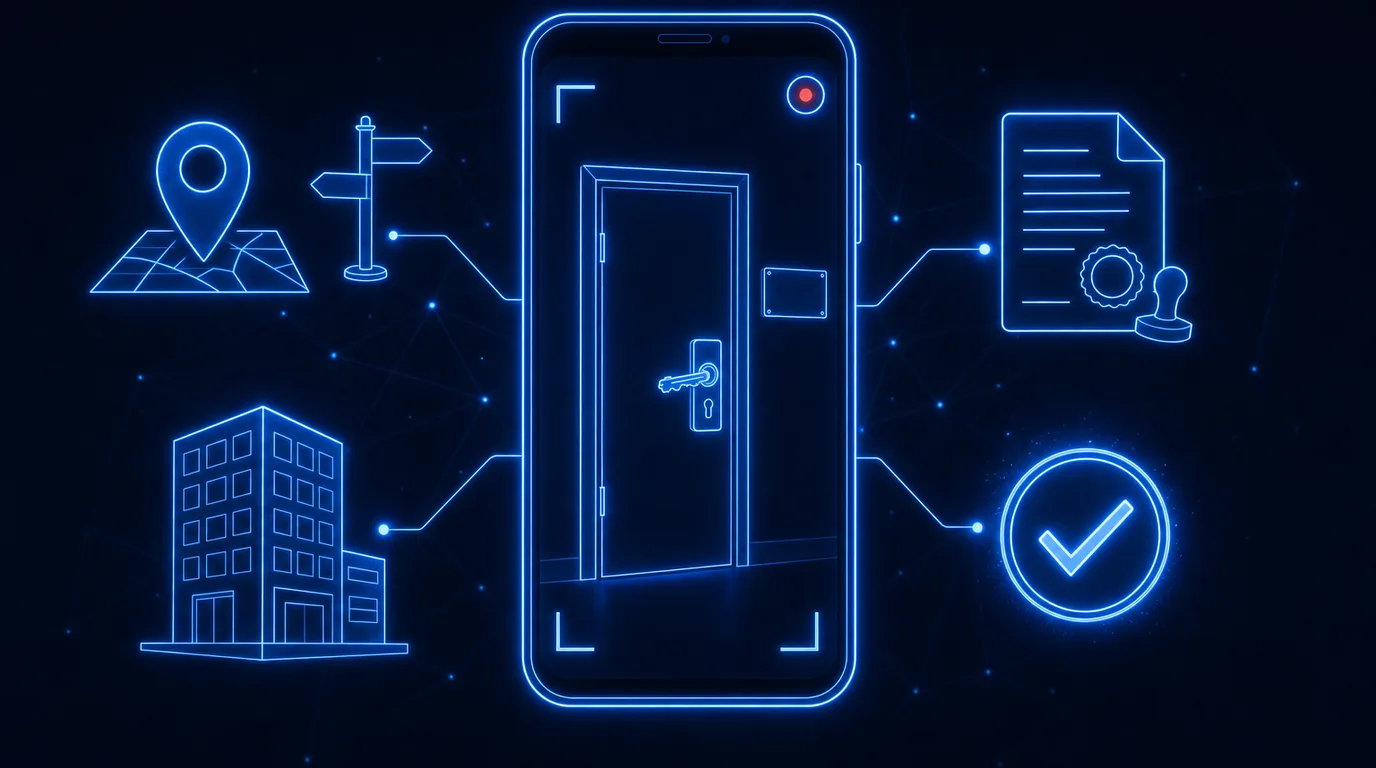

Passing Google Business Profile video verification for a new location takes two things: a real, staffed office whose name, address, and phone number match every document and listing, and one continuous video that shows the street, the building, your door, your key, and the working office inside.
These are the 43 steps we use when verifying a new location. Bookmark this page and work through it in order. Each phase sets up the next, and most rejections trace back to a skipped step early on.
This checklist is for a business adding a new location with its own office. If you're verifying a service-area profile from a branded truck or your home base, start with our guide to how Google Business Profile verification works, which covers the other methods and the service-area version of the video.
The office has to be real before any of this works
Google is checking whether your business actually operates at the address. Its guidelines for representing your business say a rented address where you don't operate, known as a virtual office, isn't eligible. A co-working office only qualifies with clear signage, your own staff during business hours, and customers coming in. Service-area businesses can't list a virtual office unless someone staffs it during business hours.
So treat the suite as a working office. Staff it during the hours you list. That keeps the profile safe after verification too, when Google can look again at any time. If you're not sure the new location qualifies for its own profile, read Google's rules for multiple locations first.
Phase 1: Lease the right suite (steps 1–4)
- Get a real suite with a lease (not a home address, PO box, virtual office, or co-working desk).
- Pick a suite in the middle of the area you want to rank in.
- A 120 sq ft month-to-month room (around $500) is plenty.
- Make sure the door locks and you have the key.
Location matters because the address anchors where the profile shows up in the map pack. The key matters because unlocking the door on camera is your strongest proof that you manage the space.
Phase 2: Make your name, address, and phone match everywhere (steps 5–11)
- Lock in your business name, address, and phone number.
- Use that exact name, address, and phone everywhere online.
- Get a DBA if the profile name differs from your legal name.
- Make sure the business license shows the same name, address, and phone at the new suite.
- Make sure the DBA shows the same name, address, and phone.
- Make sure the lease shows the same name, address, and phone.
- Build your citations with the matching name, address, and phone.
The documents you show on camera need to agree with the profile and with each other. A license with the old address or a lease under a different name gives a reviewer a reason to say no. For more on why this matters for rankings as well as verification, see NAP consistency and local citations.
Phase 3: Put the location online before you submit (steps 12–13)
- Build the location's landing page.
- Wait about a week for the landing page and citations to get picked up before you submit.
A landing page and citations that already show the new address give Google outside sources that back up what your video claims.
Phase 4: Set up the office for the camera (steps 14–20)
- Order a 6x12" plaque with your name, address, and phone, matching your documents.
- Hang it on the door (blue painter's tape works).
- Get your business name and suite number on the lobby directory.
- Lay out your license, DBA, and lease on the desk.
- Set up a laptop, open, with the charger plugged into the wall.
- Put branded polos, hoodies, and hats around the room.
- Bring in real job gear (dirty boots or overalls in the corner).
Tape holds the sign up for the video. If customers will visit this office and the address shows on your profile, mount the sign properly, because Google's storefront rules call for your name on a permanent fixture. The gear should be what your crew actually uses here, since it's your proof that the business exists and works out of this space.
Phase 5: Record the verification video (steps 21–33)
Before you hit record, know Google's ground rules from its video verification requirements:
- You record live from a mobile device inside your Business Profile. Pre-recorded uploads aren't allowed.
- The video must be at least 30 seconds, unedited, and complete with no breaks.
- Leave out bank, tax, and ID numbers, private information, and other people's faces.
Then walk the route:
- Film in daylight with the lights on.
- Record in one continuous take, with no cuts and no stitched clips.
- Keep the camera steady.
- Start outside on the street and get the street signs in frame.
- Film yourself walking into the building (upper floor? start in the lobby).
- Show the tenant directory with your name and suite number.
- Walk down the hallway to your door.
- Show the sign on the door.
- Unlock the door with your key on camera.
- Walk in and pan over the documents and laptop (no need to read them word for word, and keep license and tax numbers out of focus).
- Sweep the room so it's obviously a working office, not a closet.
- Keep it short: in, film it, out.
- Make sure it shows where you are, the equipment you use, and proof you manage the place.
How each shot covers what Google checks
Google's reviewers look for three things. Here's where each one lands in the video:
| What Google checks | Steps that prove it |
|---|---|
| Where the business is | Street signs (24), building entrance (25), tenant directory (26) |
| Proof the business exists | Door sign (28), branded apparel and job gear (19–20), working office (31) |
| Proof you manage it | Unlocking the door (29), license, DBA, and lease (30) |
If a reviewer can't tick all three boxes from your footage, expect a request to record again.
Phase 6: Submit and leave the profile alone (steps 34–36)
- Submit the video.
- Don't touch the profile after submitting: no name change, no category swap, no editing hours.
- Expect anywhere from about a week to 30 days.
Google says reviews take up to 5 business days and sometimes longer. New locations often take longer than that in our experience, so plan around 30 days. If Google rejects the video, it now tells you what was missing. Record a fresh one that covers the gap. If the profile gets suspended instead, our guide to Google Business Profile suspensions explains the next steps.
Phase 7: Build out the profile once it's live (steps 37–43)
- Once it's live, set the primary category, services, hours, phone, and website.
- Fill in every service you offer.
- Upload job photos from the area.
- Embed the profile on the landing page.
- Put the service and town in the landing page H1.
- Start sending reviews to the new profile.
- Never flip the primary category later without a plan (it can send you back into verification).
Verification gets the location on the map. These steps help it rank and turn searches into calls. Start with choosing the right categories, then work through our Google Business Profile optimization playbook for movers and our guide to getting more Google reviews.
For what Google's own verification team says it looks for, read our notes from Google's verification product manager.
Frequently Asked Questions
How long does Google Business Profile video verification take?
Google says verification reviews take up to 5 business days, and occasionally longer. For new locations we've seen anywhere from about a week to 30 days. Don't edit the profile while you wait.
How long should a Google Business Profile verification video be?
Google requires at least 30 seconds of unedited footage recorded in one take with no breaks. Keep it short beyond that: go in, film what Google needs to see, and get out.
Can I verify a Google Business Profile at a virtual office or co-working space?
Not a virtual office. Google says a rented address where the business doesn't operate isn't eligible. A co-working office only qualifies if it has clear signage, is staffed by your team during business hours, and receives customers there.
Can I upload a pre-recorded verification video?
No. Google requires you to record the video live from a mobile device through your Business Profile. You can't record offline and upload it later, so plan the route before you hit record.
Why was my Google Business Profile verification video rejected?
Most rejections miss one of Google's three requirements: showing where the business is, proof the business exists, or proof that you manage it. Google now tells you what was missing. Record a new video that covers it.
Does changing my primary category trigger re-verification?
It can. Google says changes to business info may require re-verification. Don't touch the profile while it's under review, and plan any later primary category change before you make it.
Opening a new location?
Our Google Business Profile management team handles new-location setup for moving companies, from matching the paperwork and citations to building the landing page and growing the profile after verification.